
Full Roid Emulator
How to install Full Roid Emulator APK?
1. Tap the downloaded Full Roid Emulator APK file.
2. Touch install.
3. Follow the steps on the screen.
Description
You might feel nostalgic when starting up an older game. Whether it be due to the short soundtrack, bright characters or the initial level. This allows you to play supported console games on your Android device using the Full Roid Emulator.
Understanding what you are looking for can help. The app will have many different names on various developers’ sites and download sites. The official free version on Google Play is called One Emulator for Game Consoles.
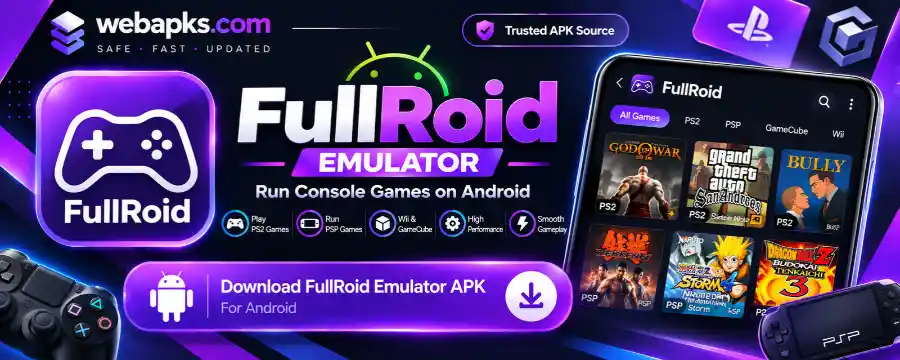
This guide will give you a better understanding of how they connect, what great features they have, and how to get started. Along with game files, easy controls and saving your progress.
About Full Roid Emulator 2027
Full Roid Emulator was created by Fulldive for Android. An emulator mimics the functions of another system enough to be able to run compatible software. In our case, this supports console game files using an Android application.
You can think of an emulator like a piece of hardware. Whilst this will give you access to an emulator, you will still need the correct game files to play the games you remember.
The emulator was developed using an existing emulator codebase. The repository can be found publicly and still has references to Lemuroid and the Libretro Ecosystem. This helps to explain why there are multiple emulation components
What Game Systems Are Listed?
Below is a table showing some of the examples. Not all games will be available; this will depend on the version you have installed, your device and the specific game file.
| System | Family | Example Systems |
|---|---|---|
| Nintendo | Handheld | Game Boy, Game Boy Colour, Game Boy Advance |
| Nintendo | Console | NES, SNES, Nintendo 64 |
| Nintendo | later Handheld | Nintendo DS, Nintendo 3DS |
| Sega | Gaming Systems | Master System, Game Gear, Mega Drive, Sega CD |
| Sony | Gaming Systems | PlayStation, PlayStation Portable |
| Atari | Gaming Systems | Atari 2600, Atari 7800, Atari Lynx |
Just because a system is supported doesn’t mean all games will work as well.
Emulator Core
The core handles the emulation of a specific gaming system. The main application allows for managing your library, menus, controls, etc.
It is like having a central hub for multiple media players. Each plays a specific media type, but the hub allows you to have a single point of control. The emulator front end works in a similar way.
This is why some systems will perform better than others. Improvements to one core will not necessarily improve all the consoles within the application. The Full Roid Emulator Pro APK development history shows that improvements to the individual cores and save management were done separately.
Key Features of Full Roid Emulator
The official information mentions library scanning, custom controls, save management and controller support. These are the key features that help make the emulator more playable.
Library Scanning
Helps allow supported games to be found within your chosen folders. You can easily navigate through known games rather than having to search through your storage.
Custom Touch Controls
You can customise the size and position of the touch controls. This is important as different phones and players will have different ideal thumb positions.
Fast Save & Slots
Fast save allows you to save at any time. This can help by saving at specific points.
You might want to save at one point so that you can try a tricky part. You could also have another slot to save where you are currently. Be sure that you are saving to the correct slot so that you don’t overwrite a useful save from earlier.
Fast Forward
Fast forward can be used to help you get through slower parts of the game with Full Roid Emulator. This could be useful if you have repetitive dialogue or sections you know well.
Ensure you go back to normal speed before any precise movements or timing. Fast forwarding can only really be used if you can still keep up with what is going on. This shouldn’t be confused with speeding up a game that isn’t working.
External Controllers
The developer has mentioned that it can be used with touchscreen, Bluetooth gamepads and Android TV. Using a physical controller can help by removing your fingers from the screen.
Before playing for longer, ensure you can move around, confirm, cancel and use any shoulder buttons. Using a controller to navigate menus doesn’t mean all the inputs for gameplay will be set up correctly. Ensure the actions you need for your chosen game are working.
Save States and Normal Saves
Save States allow you to save the exact current state of your emulator. Normal saves are saved using the game’s internal save system.
They can be dependent on specific versions of the core. Updating or altering them could cause issues with loading older save states; however, normal game saves can be easily moved if the software being used supports it.
| Save Method | Useful For | Consideration |
|---|---|---|
| Game Save | Saving your progress using the game’s normal save system | Make sure you save at the correct points in the game |
| Save State | Going back to a specific point in the game | Availability may depend on your emulator core |
| Backup | Keeping an extra copy of important progress | Make sure you know which files are included in the backup |
If there is an option to save using the game itself, do so. Make use of any easy save slots.
Does Full Roid Emulator Have Games?
FullRoid Emulator has a separate catalogue of free open-source games. As mentioned in the documentation, this is different to a catalogue of commercially released console games. Not all Nintendo, Sega, or PlayStation games will be included.
The aim is to provide appropriate content for users; however, availability may depend on the release of the application and what is shown in the catalogue. Please make sure to check what is available within the current library.
How to Download & Install Full Roid Emulator App?
The easiest way to begin using Full Roid Pro Emulator on Android is by using the official Google Play listing.
Installation via Google Play
- Go to the official One Emulator for Game Consoles page on Google Play.
- Check that the publisher is the same as the official application page linked from Fulldive.
- Check if it can be installed on your chosen Android device.
- Read the current description and any purchasing information.
- Click install and wait for the application to download from the store.
- Launch the emulator and follow the setup and storage prompts.
APK Considerations
Just because an APK is from another site doesn’t mean it will be the same. Check who is distributing it, what package it is and what updates are available.
Keep your Android security features enabled. Be wary of any warnings. Don’t follow any instructions telling you to turn off scanning.
Setting Up Your First Game in FullRoid Emulator
Create a Folder
Keep your authorised game files in a recognisable folder. You may wish to separate games into different folders depending on their system.
Do not rename any files to change the extension type. Whilst this will not change the file format, ensure that you follow the correct guidelines for the system that the game is for. If you have multiple files that are related to the game.
Select The Right Folder
Using the library or select folder option within the Full Roid Emulator Games, select the folder you wish to use. When prompted by the Android folder selection, give the app permission.
Wait until the scan completes before assuming that a game hasn’t been found. If it isn’t showing up, check that you are using the right location and the correct file format. Constantly moving files around whilst scanning can confuse.
Test With A Quick Game
Open one of the recognised games to test whether the sound, movement and controls are working. Ensure that you get past the start menu.
If possible, create a standard save and test that you can open it again at a later date. This will give you a good starting point.
Touch Controls or Gamepad?
Using touch controls can be handy if you want to play for a short time without any accessories. However, having multiple buttons to press can be more comfortable with a gamepad.
Think about the game itself. Some games, such as puzzles, may be slower and only require a few simple button presses. Other action-packed games might need rapid movements and multiple actions.
| Situation | Recommended Setup |
|---|---|
| Short game whilst out | Comfortable touch controls |
| Long game whilst sat down | Controller and steady position |
| Multiple actions | Gamepad with properly assigned buttons |
| Shared screen | Compatible Android TV and controllers |
If you find the buttons are backwards, compare them to the game’s instructions. Get used to having a consistent layout.
Multiplayer
As mentioned in the Google Play Description, this means that you can have multiple gamepads attached to the same device with Full Roid Emulator. It does NOT mean you can play against someone on another phone.
Before attempting to play together, ensure that the game you have selected does support multiple players. Also ensure that the emulator recognises each controller as an individual player.
Can I Use Full Roid Emulator on Android?
The controls will vary between different Android TVs, but Fulldive has documented the controls on Android TV alongside those on phones and tablets. Ensure you can browse the library without using a touchscreen. Ensure the Full Roid APK menu can be accessed using the controller.
Free vs Paid Versions & Ads
Both free and paid versions are available for Full Roid Emulator. They have the same core underneath, so compatibility shouldn’t be guaranteed by paying.
There was conflicting information from the official sources. The free version is currently advertised as being ad-free. However, the free version does have ads, and they can be removed with the Pro version.
Due to this conflicting information, always double-check what version you have installed currently. This article doesn’t assume what advertising format is used.
| Question | Information / Answer |
|---|---|
| Is there a free and paid version? | Yes, there are two official versions listed. |
| Is compatibility guaranteed with the Pro version? | The cores are the same according to the developer. |
| Is the free version definitely ad-free? | There is conflicting information from official sources. |
| Is there a set price? | No. Always check the current price in the store. |
Backing Up Your Saves
Always make sure you have a default save for your game on FullRoid X Emulator. If you’re changing emulator settings or switching devices, make sure you have a backup of any important save files.
Don’t assume you have saved your game to the cloud. Always check that you have confirmation and that your important progress is backed up before deleting another instance.
General Issues & Initial Checks in Full Roid Emulator
It can sometimes help to know where an issue has specifically occurred. For example:
| Issue | Initial Checks |
|---|---|
| Game won’t show up | Check whether you have the correct access to the game folder. Make sure you have selected a folder that allows proper access. |
| Game shows a black screen | Check whether the game is compatible and all required support files are present. |
| Buttons aren’t working properly | Check the controller settings in the emulator. Buttons may be mapped differently in the menu and during gameplay. |
| Movement is laggy | Check the default settings on Full Roid Emulator and see whether other games have the same issue. |
| State won’t load | Check whether your application or core is updated. If possible, try loading a normal game save. |
Game Won’t Show Up
Ensure that your Full Roid Emulator Mod APK can access the game folder. If you have selected a parent folder, ensure that you have the correct access set up.
Ensure that the file is compatible with the system. If it is an unrelated file or incomplete archive, renaming it won’t make it playable.
Controller Only Working In Menus
Check your controller settings within the emulator. The buttons may be mapped differently between the menu and the game.
Try using directional buttons and the 1 button to see if they work, then work your way through. This will keep your changes organised and make it clearer what input isn’t working.
Save State Won’t Load
Check that you haven’t updated your application. If you have a saved game, try saving normally.
Before messing around with importing and other options, make sure you have a backup of your original files. Overwriting them multiple times can confuse. Some of these issues are also in the Yuzu Emulator APK.
Quick Checks
- A quick check can save you some frustration. Just check the most important aspects of your setup on Full Roid Emulator.
- Movement and action buttons are working as expected.
- Dialogue and important effects can be heard at your volume.
- If possible, save normally and ensure the state slot you have selected is correct.
- Ensure that your device is in a comfortable position and nothing important on the screen is being blocked.
If you are getting consistent errors, take a moment to look into it. Don’t waste hours on this setup.
Pros and Cons
Full Roid Emulator has several features that can be used to emulate various systems; however, it will depend on what you want to play.
| Pros | Cons |
|---|---|
| Supports multiple gaming systems | May have compatibility issues with individual games |
| Touch controls are available | Physical buttons may offer better control |
| Save states allow players to save progress at specific points | May depend on older save states or emulator cores |
| Supports external controllers | May require careful controller setup |
| Offers a free game catalogue | May not include popular games from developers |
| Available through app stores | Availability and offers may vary |
FAQs About Full Roid Emulator
Is this an Android Emulator for Windows?
Yes! This Full Roid Emulator is for Android apps being run on Windows.
Do I need a BIOS file for every game?
As stated in the store, there is BIOS emulation. However, the developers have provided some guidance on firmware. This will depend on the system and core you are using.
Can I play without internet on Full Roid Emulator?
You should be able to play your chosen game once everything has been installed and downloaded. You may need internet to set up, download the catalogue and save online.
Will my saves work on another emulator?
This will depend on the save format and if it is supported by the app. You should not assume save states can be used across different emulators.
Will I get all games for the consoles when installing the app?
This just means which consoles the Full Roid Emulator will support. The developers’ catalogue will not include all commercial console games.
Conclusion
If you only want to play one game, then the Full Roid Emulator Application makes more sense. Find the correct official page, sort out the official files and set up your controls. Check saving as soon as possible and build up a collection that works well with your device.
Related apps



Popular Applications
-
 InShot ModV2.243.1555 69.86 MB November 11, 2026
-
 Roblox ModMODV2.746.1266 191 MB November 11, 2026
-
 Spotify APKV9.1.98.621 148.9 MB November 10, 2026
-
 Subway Surfers ModMODV3.71.10 230–242 MB November 10, 2026
-
 YouTube APKV21.45.82 64.46 MB November 9, 2026
-
 Castle BustersV1.22.0 150 MB November 6, 2026
-